
Using the Action Command Feature
The Action Command feature allows you to send a software trigger as a broadcast signal over a network to control one or more GigE cameras with a single command. Cameras on a common network can be triggered in groups or individually. The action can be executed immediately or scheduled for a future time. Action commands can be broadcast from the host PC, or another PC or device on the network, including another camera.
Products supported:
- Forge 5GigE with version 1.4 firmware or later
- Spinnaker version 4.0 or later
All the cameras:
- Must all have the supporting firmware
- Must be on the same network
- Should be synchronized using PTP protocol (recommended)
Action Command Overview
An action message (ACTION_CMD) contains:
- Device Key - to identify specific devices; if message and device have equal keys, the device can execute the action
- Group Key - to identify group of devices; if message and device have equal group keys, the device can execute the action`
- Group Mask - to identify a sub group of devices; if message and device have equal group masks, the device can execute the action
- Action Time (for scheduled actions only). An action command received with a time in the past will be treated as an immediate action command.
- Request for acknowledgement (optional)
The message and the camera’s identifiers (Device Key, Group Key, or Group Mask) must be equal for the camera to execute the action. If they are not equal, the camera does not execute the action.
Acknowledgements
Acknowledgements are only sent if requested or if the queue is full.
Requesting acknowledgements is not recommended in scenarios with high frame rates (~200 FPS or higher)
If the Scheduled Action Commands queue is full and the device receives an additional command then the device returns an acknowledgement with an overflow status code and the command is not queued.
Scheduled Action Commands
Scheduled Action Commands are camera control commands which can be queued, then executed by the camera at a specific time. Scheduling commands allows system designers to avoid signal propagation delays. Commands must be scheduled for further out in time than the longest expected propagation delay.
Synchronization PTP
When used together with IEEE1588 Precision Time Protocol (PTP), scheduled action commands enable the precise frame synchronization of multiple cameras without GPIO hardware triggering. With PTP, camera clocks can be tightly synchronized to a common time base or a GPS atomic clock. A scheduled Action Command broadcast to a group of cameras with synchronized clocks, will be executed within a few microseconds of each other.
PTP must be enabled on all the cameras using action commands. For greater accuracy, a PTP grandmaster clock can be connected to the Ethernet switch.
Limitations
For applications demanding the highest degree of precision possible, triggering the camera over non-opto-isolated input will yield the lowest latency and jitter.
Note: Without the protection of on an opto-isolator, care must be taken to ensure the voltages applied to the input do not damage the camera.
If the reference time is not synchronized to a standard clock the command is scheduled based on the local camera time.
Applications
Industrial
Scheduled action commands on PTP synchronized hardware opens the door to a new way of thinking about camera and system control. With tight synchronization to a common time base possible across an entire system of Ethernet enabled hardware, system designers can build faster and more reliable systems by eliminating sources of jitter.
Systems operating on a common time base perform their actions at precise intervals, rather than relying on sensors to digitize and transmit signals to controllers which return command signals. The shift in system design from sensor event-based control, to time-based control simplifies systems, making them less expensive and more reliable. The greatly reduced jitter of time-based control systems allows them to operate at much higher throughputs than event-based systems.
By combining precise camera control, power and image transmission onto a single cable, PTP and action commands can reduce cabling costs by eliminating the need for hardware triggering over GPIO. This is important for demanding industrial environments which require expensive high temperature or high flexibility cables.
Virtual Reality (VR) and Volumetric Capture
Enabling frame synchronization across an entire VR or volumetric capture system can be simplified using PTP and action commands. Synchronization ensures images are free from asynchronous capture artifacts and their timestamps line up precisely.
Camera Generated Action Commands
On Forge 5GigE models with v1.4 firmware or later, the source of the action command can be one of the cameras in the group.
Camera generated action commands enable broadcasting a trigger signal to multiple GigE cameras at the same time over an Ethernet interface triggered by an event to a single camera. The event can be either an internal signal in the camera or a physical input line.
This differs from other action commands in the following ways:
- Requesting acknowledgements is not supported using camera controlled action commands.
- The camera sending the action command does not execute the command itself.
Setting up Camera Generated Action Commands
Note: Acquisition must be off to set up action commands.
Step 1 - Set up the Master Camera
On the camera sending the command (master):
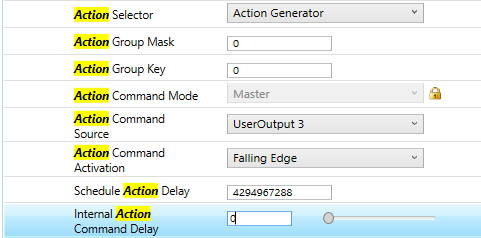
1. In Action Control, set Action Selector to Action Generator.
This changes the Action Command Mode to Master.
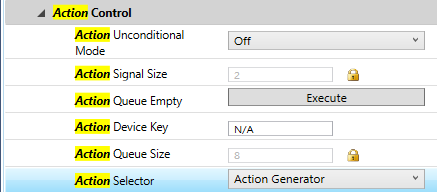
2. Identify which cameras should execute the command by:
- Action Device Key - use to identify a specific device
- Action Group Key - use to identify a group of devices
- Action Group Mask - use to identify a subgroup of devices
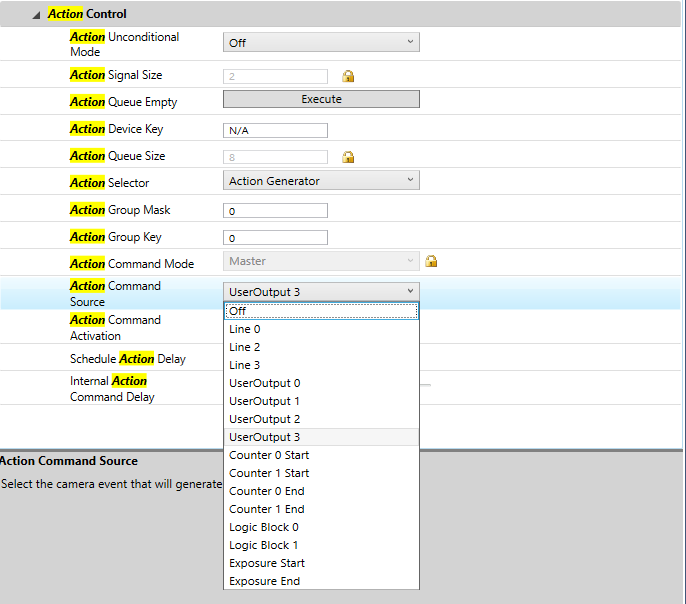
3. Set Action Command Source (a list of I/O sources) to UserOutput3.
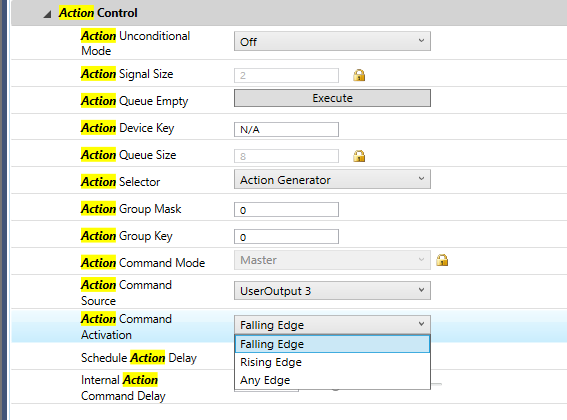
5. Set the Action Command Activation.
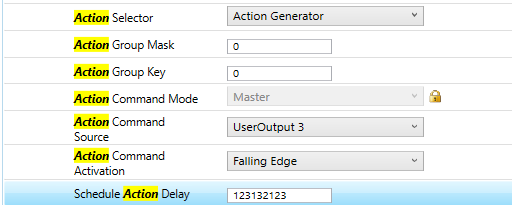
6. Set the Schedule Action Delay in nanoseconds.
- 0 = immediate
- Up to 4294967288 ns = scheduled
7. Set Internal Action Command Delay in nanoseconds.
- Can be set between 0 – 524280 ns.
This is an internal delay used only for immediate action commands. It allows you to specify a delay in order to more closely synchronize immediate action commands across the network or multiple switches.
Step 2 - Set up the Other Cameras
On all other cameras in the network:
1. In Action Control, set Action Selector to Action Signal 0.
This changes the Action command Mode to Slave.
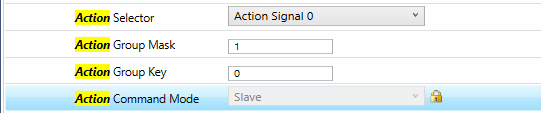
2. Identify which groups or sub groups the camera belongs to by defining either:
- Action Group Mask
- Action Group Key
The camera's identification by Device Key, Group Mask, or Group Key must match the definition by the action generator for it to execute the command. A camera's Device Key is identified by its Device ID.
5. Set Action Command Source to Off.
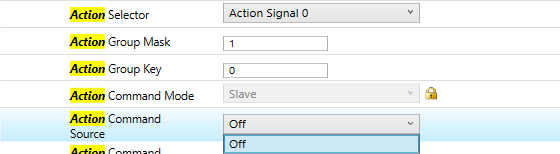
6. Set Action Command Activation to Off.
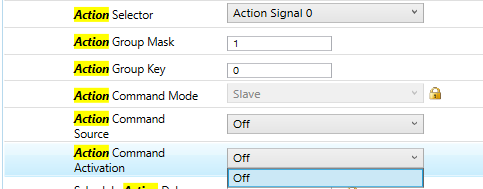
7. Schedule Action Delay is always 0.
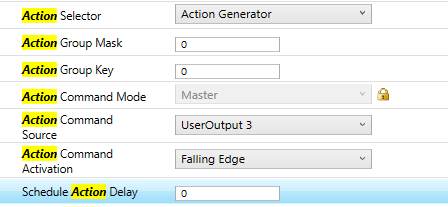
8. Set Internal Action Command Delay in nanoseconds.
- Can be set between 0 – 524280 ns.
9. Under the Acquisition Control node, set the following:
- AcquisitionMode to MultiFrame
- Trigger Selector to FrameStart
- Trigger Source to “Action Signal 0”
- Trigger Mode to On.
Related Articles
-
 Application Note
Using the Sequencer Feature
Learn more -
Application Note
Using Logic Blocks
Learn more -
Application Note
Using Counter and Timer Control
Learn more