
Getting Started with Bumblebee X in MATLAB
Overview
This application note describes the steps to set up and use the Bumblebee X stereo vision camera in MATLAB.
For other GigE or USB3 cameras used in MATLAB, please see Getting Started with MATLAB.
Preparing for Use
Before you use your Bumblebee X camera, we recommend that you are aware of resources available from the product webpage, including:
- Getting Started Manual for the camera—provides information on installing components and software needed to run the camera.
- Technical Reference for the camera—provides information on the camera’s specifications, features, and operations, as well as imaging and acquisition controls.
- Firmware updates—ensure you are using the most up-to-date firmware for the camera to take advantage of improvements and fixes.
Installation and Configuration
Step 1--Install MATLAB
Download MATLAB R2022b (or later) from the MathWorks website. Follow the installation instructions.
Step 2--Connect the Bumblebee X Camera to the PC
Connect the Bumblebee X camera to the PC. You can power over GPIO or over PoE.
Note: using a 1GigE PoE adapter drops the maximum link speed.
For information, see the Bumblebee X Getting Started Manual.
Step 3--Start MATLAB and Detect the Camera
1. Launch MATLAB.
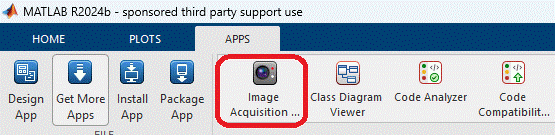
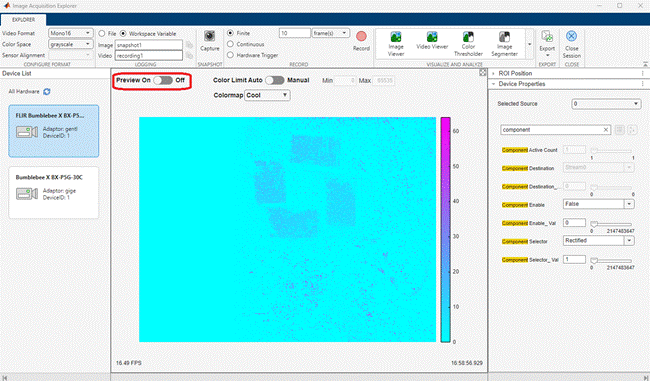
2. Under the APPS tab, click Image Acquisition Explorer.
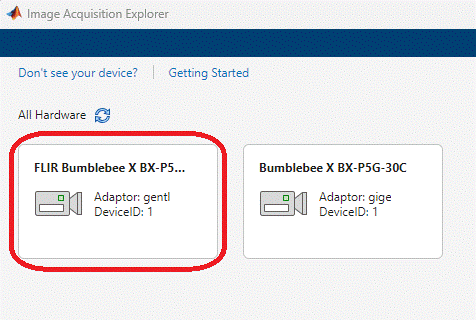
3. Click the camera with Adaptor: gentl to open the camera window.
Step 4--Select ONLY One Image Stream
There are 5 image streams in one set of Bumblebee X camera stereo images:
- Sensor 1 – Raw Image
- Sensor 1 – Rectified Image
- Sensor 1 – Disparity
- Sensor 2 – Raw Image
- Sensor 2 – Rectified Image
Note: In MATLAB, there may be an issue that you also see the node Sensor 2 – Disparity, which is a replicate node of Sensor 2 – Rectified Image. Sensor 2 – Disparity should be ignored.
Only one image stream can be enabled before starting acquisition. If two or more image streams are enabled, MATLAB cannot properly display the live streaming of multiple image streams.
As an example, to select Sensor 1 – Disparity as the only image stream, follow the steps below:
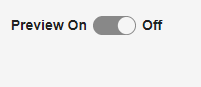
1. Before configuring camera settings, stop the camera streaming by toggling the Preview button to Off.
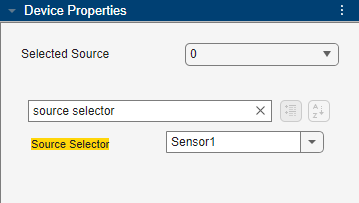
2. Search for the node Source Selector, and choose Sensor1.
3. Search by the keyword "component".
4. For Component Selector, select Raw and for Component Enable select False.
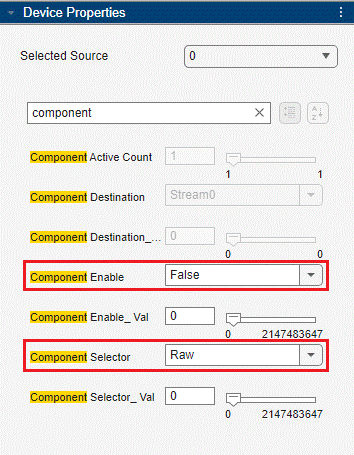
5. For Component Selector, select Rectified and for Component Enable select False.
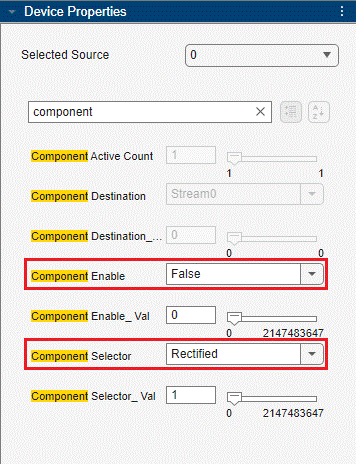
6. For Component Selector, select Disparity and for Component Enable select True.
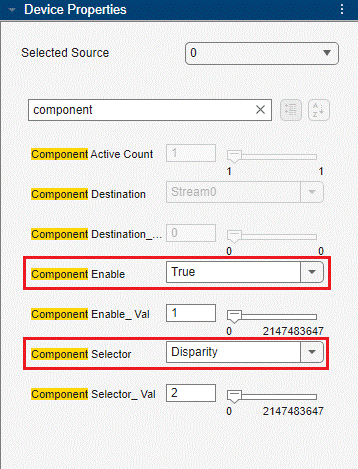
7. Search for the node Source Selector, and choose Sensor2.
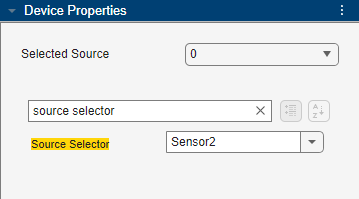
8. Search by the keyword "component".
9. For Component Selector, select Raw and for Component Enable select False.
10. For Component Selector, select Rectified and for Component Enable select False.
Step 5--Start Acquisition
Toggle the Preview button to On to enable live streaming.
Step 6--Adjust Parameters
For information on adjusting stereo parameters see Configuring Stereo Parameters for the Bumblebee X Camera.
Related Articles
-
 System Requirements
Getting Started with the Bumblebee X
Read the Story -
Application Note
Configuring Stereo Parameters for the Bumblebee X Camera
Read the Story -
Application Note
Getting Started with MATLAB
Learn more